
Introduction #
Two-factor authentication (2FA) is a way to secure online accounts by requiring two independent verification factors from the user. Instead of relying only on a password, 2FA adds an extra layer of protection, which makes unauthorized access much harder.
Enabling 2FA #
To enable two-factor authentication (2FA) in the Safestar system, follow these steps:
- Log in to the Safestar system using your correct username and password
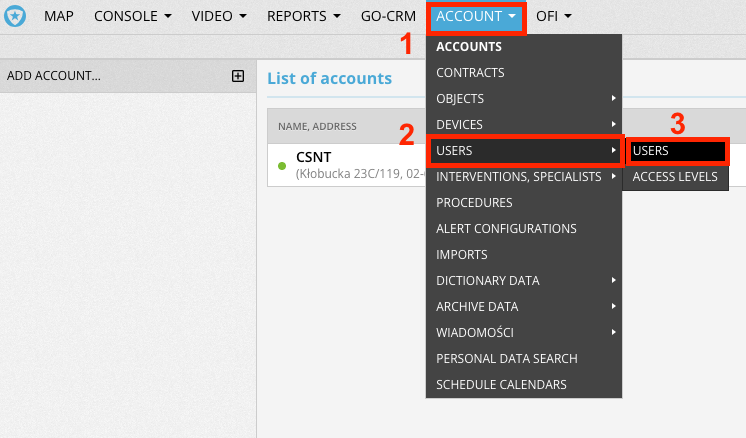
- From the main module, select the ACCOUNT → USERS → USERS tab, then choose the user from the list for whom you want to enable 2FA.
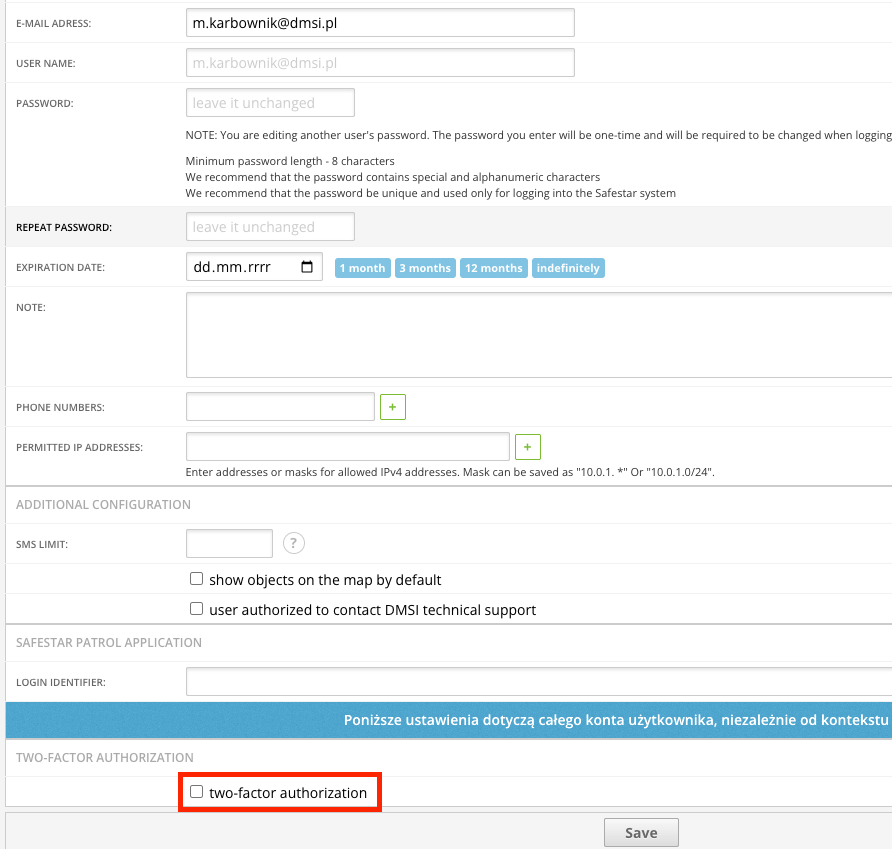
- At the bottom of the page, find the “two-factor authentication” field and check the checkbox.
Configuring 2FA #
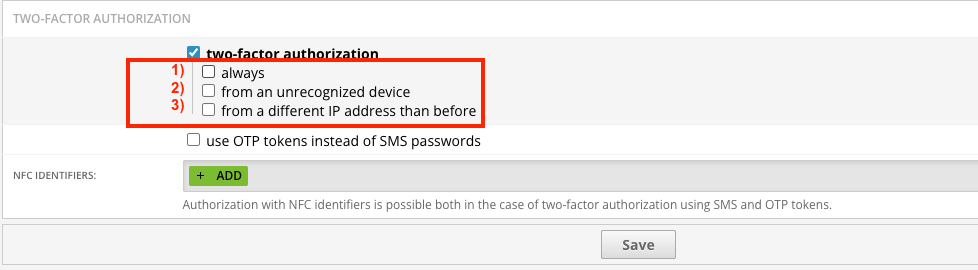
After enabling 2FA (by checking the checkbox), additional two-factor authentication configuration options will appear. You can choose when extra authorization is required. Below are descriptions of the three available options:
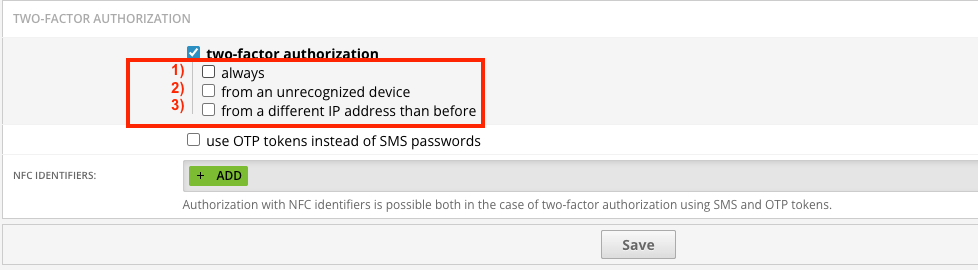
- Require two-factor authentication at every login
- Require two-factor authentication only when the user logs in from a new (unknown) device
- Require two-factor authentication only when the user logs in from a different IP address
SMS Codes
#
If two-factor authentication is to be done via SMS, you must first provide the phone number to which the authorization codes will be sent
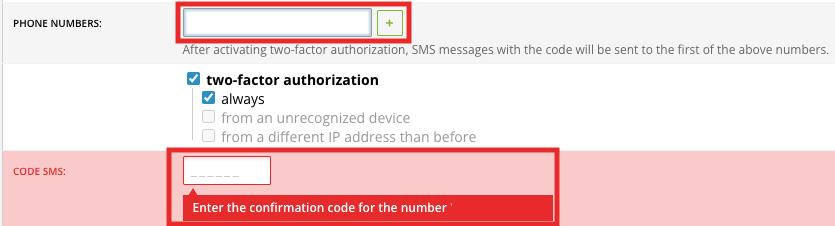
When entering a phone number for the first time, it must be verified first by entering the SMS code sent to that number. Only after successful verification can the 2FA option be fully enabled.
User authentication via SMS code is just one of the three two-factor authentication options in the Safestar system. Another option is using OTP tokens. An OTP (One-Time Password) token is a one-time password that is automatically generated every few seconds by properly configured mobile apps (e.g., Google Authenticator, Authy).
Mobile app for authorization #
To enable 2FA using OTP tokens, follow these steps
- In the two-factor authentication settings, check the box “Use OTP tokens instead of SMS passwords.”
- Download a mobile app that supports OTP tokens to your phone. For this guide, we will use Google Authenticator.
- Open the installed app, then add an authentication code for it. You can do this in two ways: by entering the configuration key manually or by scanning the QR code.
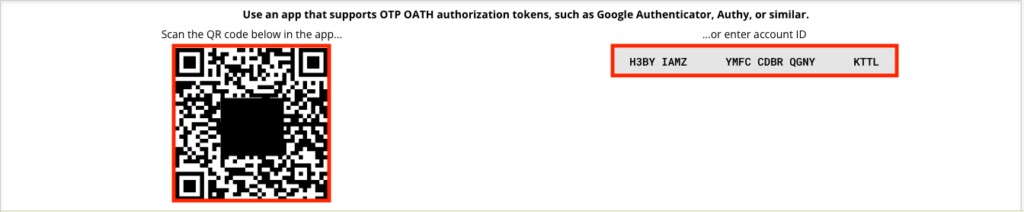
- From this point on, your device will generate temporary, one-time access codes, which will serve as an extra layer of security when logging into your account, in addition to your regular username and password.
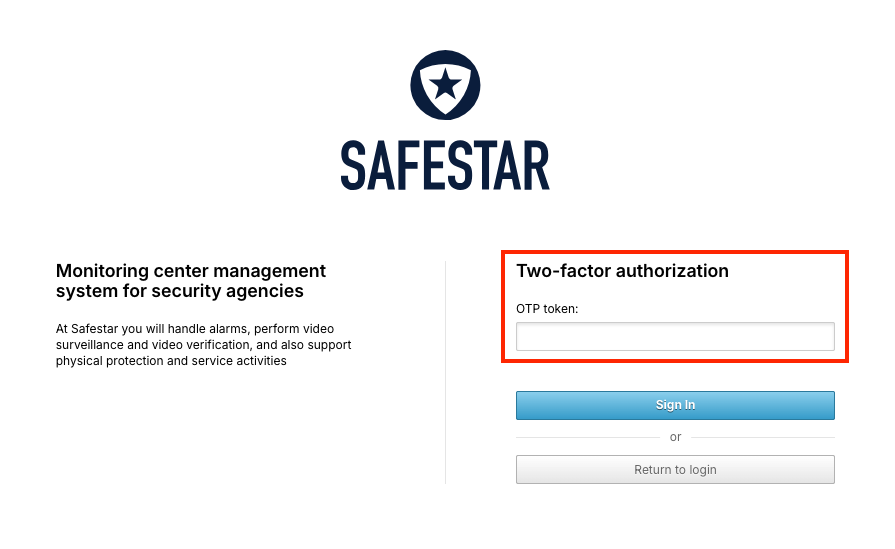
- Finally, confirm the changes in the Safestar system by clicking the “SAVE” button. After saving, when you try to log in, you will be asked to enter the OTP token.
Patrol 3 mobile app (NFC) #
The third two-factor authentication option in the Safestar system uses NFC technology. The Patrol3 app allows users to authenticate by bringing their mobile device close to a previously assigned NFC tag. This feature works alongside the other methods, meaning users can choose any of them based on their preference.
To enable 2FA using NFC points, follow these steps:
(If you already have the Patrol3 app installed, you can skip to step 2.)
- You need to install and activate the Patrol3 app on your mobile device. Detailed instructions for installing and activating the Patrol3 app can be found in the official Safestar documentation at: https://safestar.ai/docs/aplikacja-mobilna-patrol3-instalacja-konfiguracja/
- Make sure you have an NFC tag that will be used for authentication. Now, assign it to your account by clicking the green “+ADD” button.
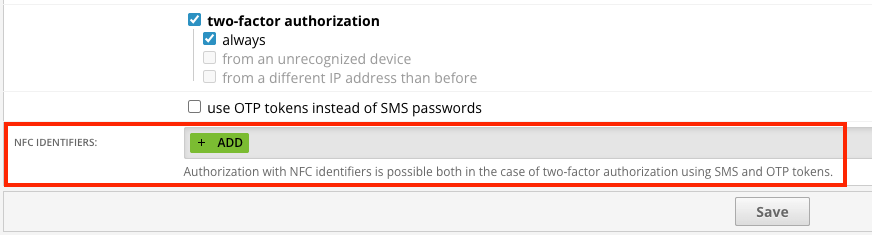
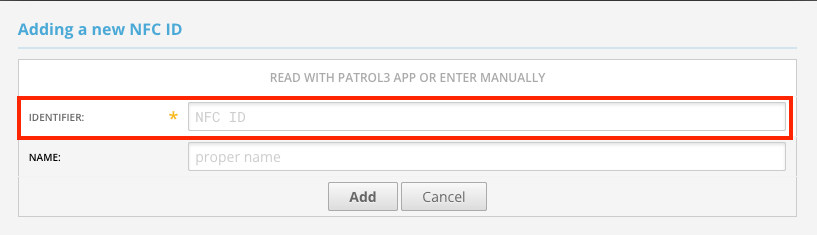
3. Use the Patrol3 app by bringing your mobile device close to the NFC tag to read its unique identifier. If everything works correctly, the point should appear in the field shown in the screenshot. Enter a name for the point, then confirm it by clicking the “Add” button.
4. From this moment, the user can authenticate in the system by bringing the device with the Patrol3 app close to the configured NFC tag.
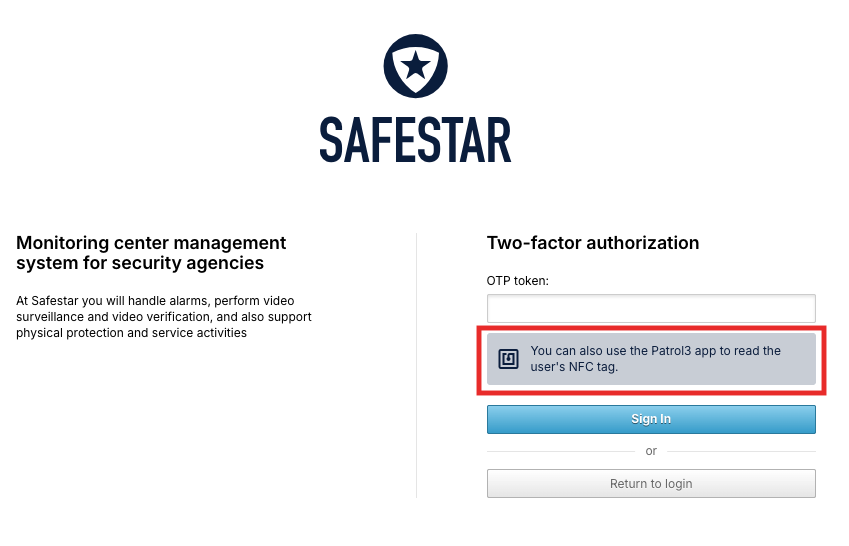
Thanks to the integration of the NFC method with the Patrol3 app and the Safestar system, users have an additional, convenient authentication option.
The most common problems #
Below, we have listed the most common issues that may occur when using 2FA in Safestar (SMS, OTP tokens, NFC), along with practical tips on how to fix them.
SMS code does not arrive #
- Make sure your phone has signal and is turned on.
- Check that the phone number is entered correctly in the user settings.
- Verify that your phone does not block messages from unknown numbers.
- Try logging in again to resend the code.
OTP token not working #
- Check that the OTP app (e.g., Google Authenticator) is configured correctly – the QR code or configuration key must match what is in the Safestar system.
- Make sure you are using a currently generated code (codes are only valid for a few seconds).
- Try adding the account to the OTP app again – generate a new QR code from the system and scan it once more.
NFC tag problem in Patrol3 app #
- Verify that the NFC tag you are using is assigned to your account and has been correctly saved in the system.
- If the problem persists, remove the NFC point from the system and add it again, following the instructions in section 3.3.
User forgot device or does not have access to 2FA #
- In such cases, you should contact the system administrator, who can temporarily disable two-factor authentication for the account..
If none of the above steps resolve the issue, we recommend contacting Safestar technical support via the form on their website or by submitting a service request in the system.


