
Introduction #
This instruction explains how to prepare all user accounts (those that use only simple names as logins) to enable two-step login.
Account preparation #
After logging into the system as an administrator, go to the user management section. To do this, select the ACCOUNT tab, then Users → Users. This will display a list of all users created in the system.
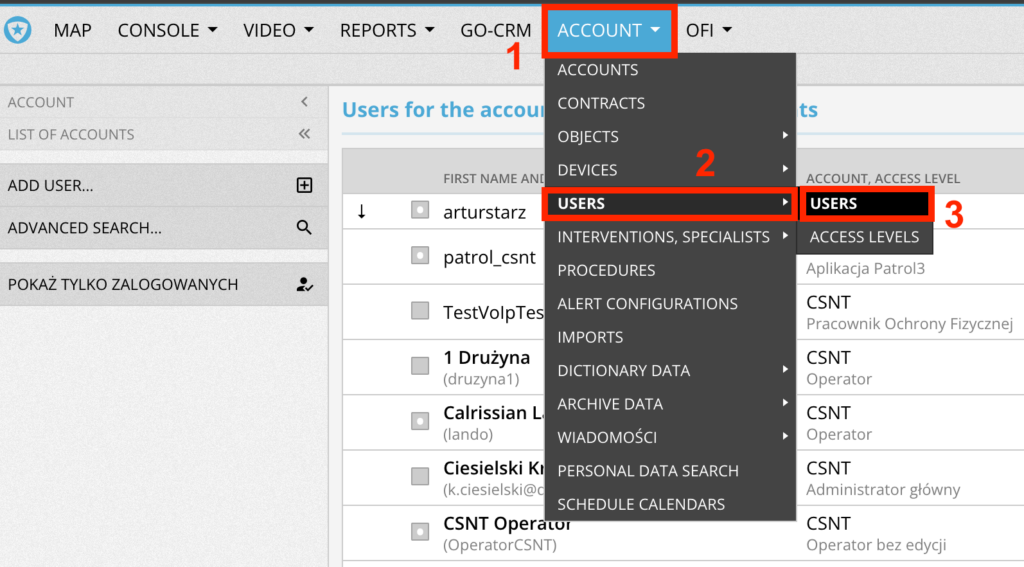
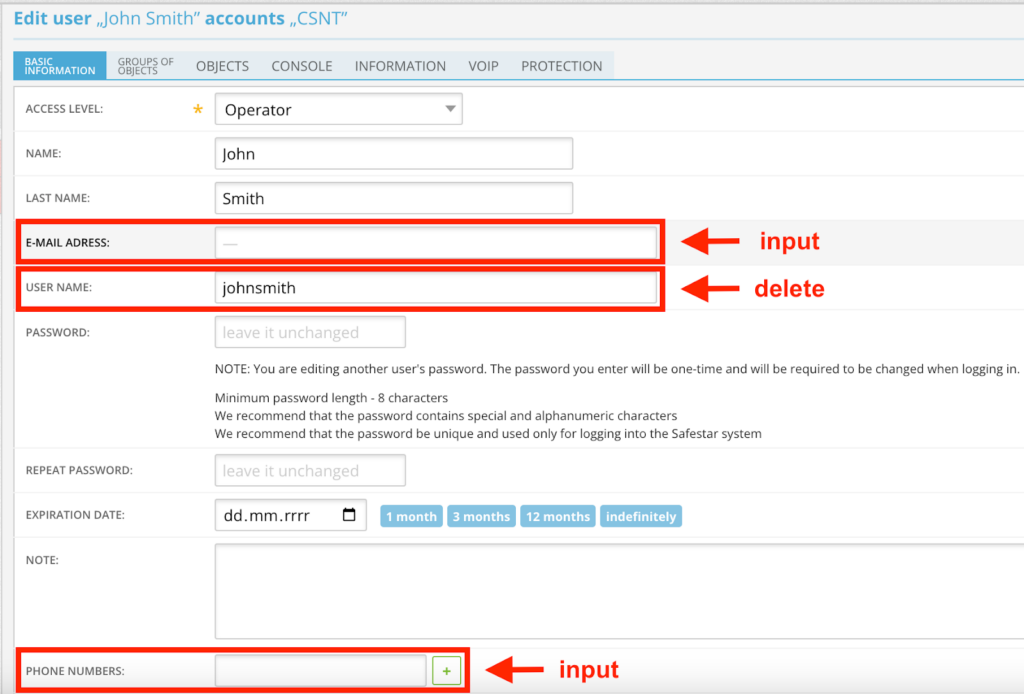
- Select a user account from the list that does not have email login configured to open its details.
- In the edit form, fill in the email address field by entering a unique email address assigned to that user.
- Remove the simple login without an email address – this field should be left empty.
- Also fill in the phone numbers field by entering a unique phone number assigned to that user.
- Verify that the form looks like the screenshot below.
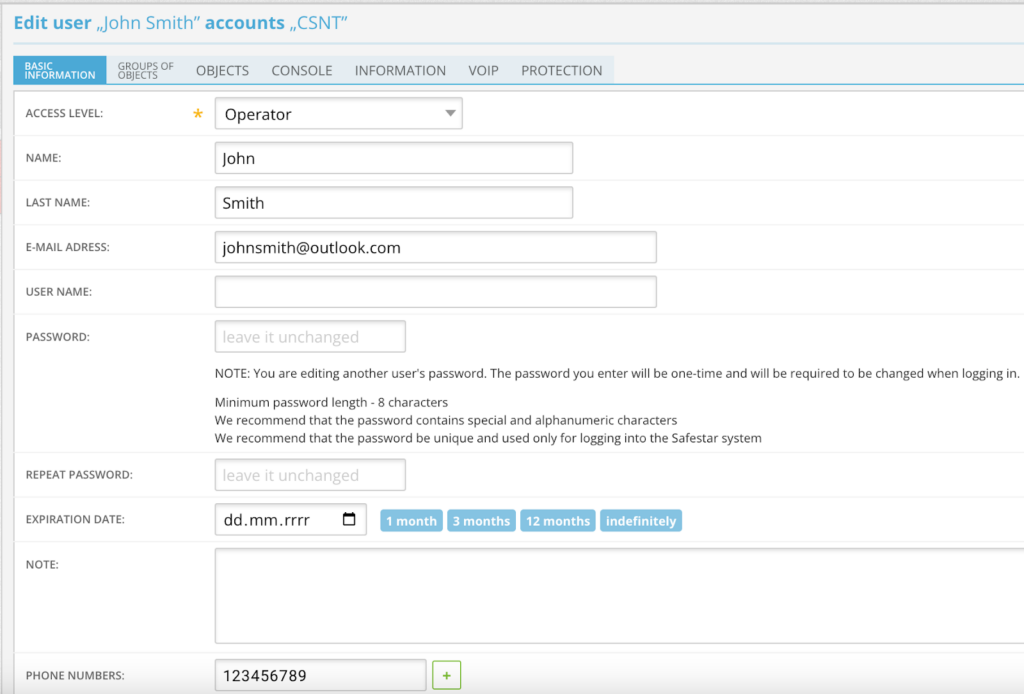
- Confirm the changes by clicking “Save” at the bottom of the form.
- From now on, the entered email address will be the user’s login to the system.


