
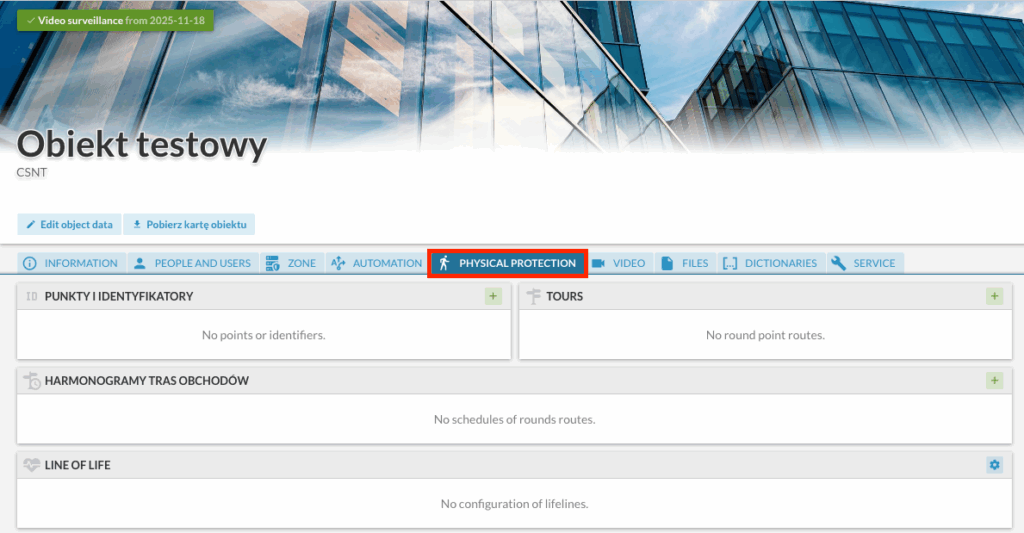
Patrol configuration is carried out from the “Physical Protection” tab in the context of a given object/facility.
Adding points to the system #
To add a point to the system, click the “+” icon in the “POINTS AND IDENTIFIERS” (PUNKTY I IDENTYFIKATORY) column.

A form for adding a new point to the facility will be displayed.
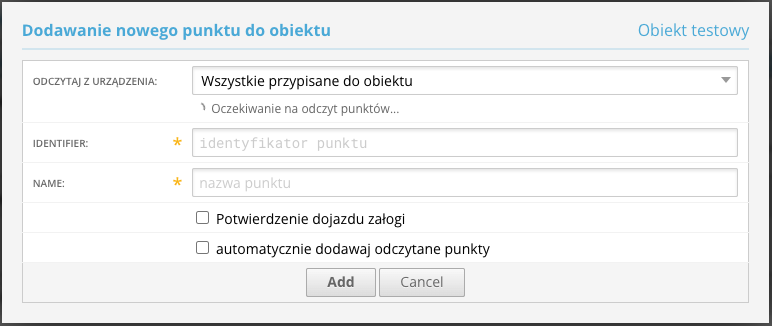
Select the device from which individual points will be read, and then scan (tap) one of them. After the signal is successfully read from the device, the system will automatically fill in the “Identifier” (Identyfikator) field with its serial number. Then assign a name to the point and confirm by clicking “Add”.
Creating patrol tours #
To create a new tours, click the “+” icon in the “TOURS” column.

A form for adding a new patrol tour will be displayed.
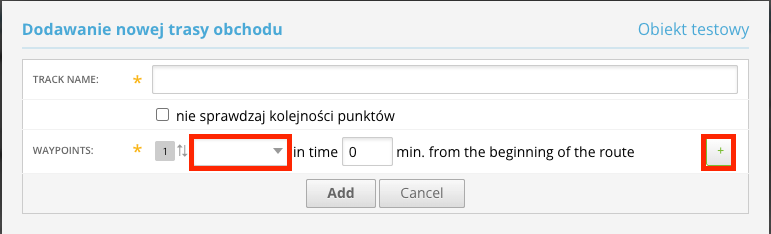
In the form, enter the name of the tour (TRACK NAME) and select the points that will make it up. Then confirm the entered configuration by clicking “Add”.
Creating a schedule #
Schedule configuration is carried out from the “Information” tab in the context of a given object/facility.
To add a schedule to the system, click the “+” icon in the “SCHEDULES” column.
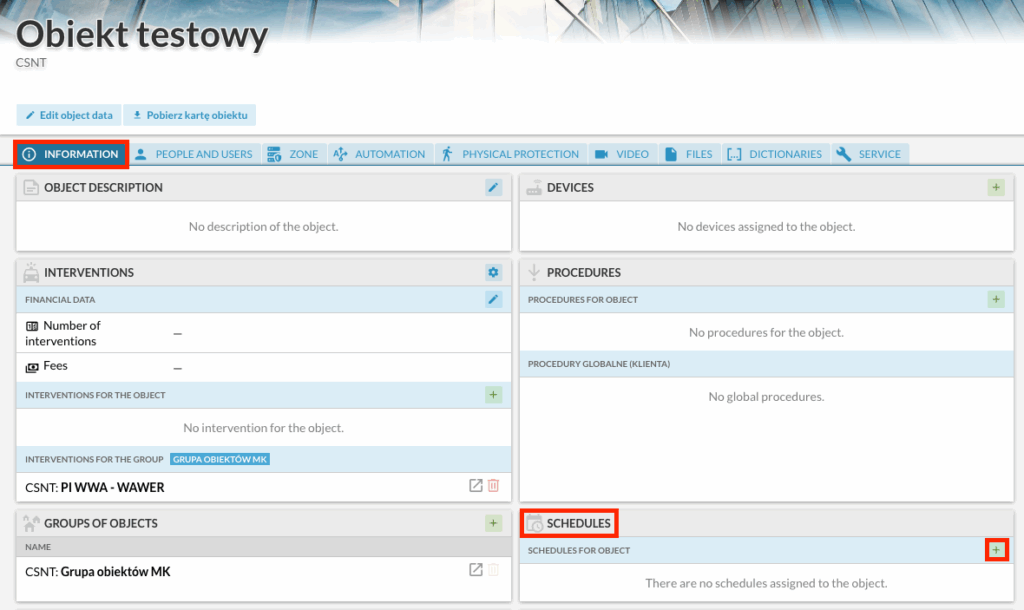
A form for adding a new schedule will be displayed.
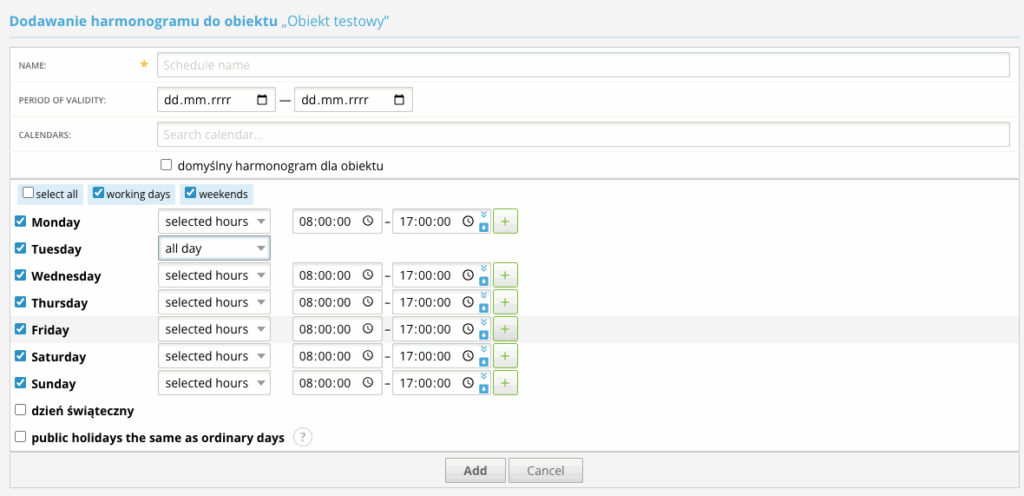
In the form, enter the schedule name and select the appropriate days and hours of its validity. Then confirm the entered configuration by clicking “Add”.
Creating a patrol tour schedule #
Completing all the previous steps makes it possible to configure patrol tour schedules. To do this, click the “+” icon in the “PATROL TOUR SCHEDULES” (HARMONOGRAMY TRAS OBCHODÓW) column.
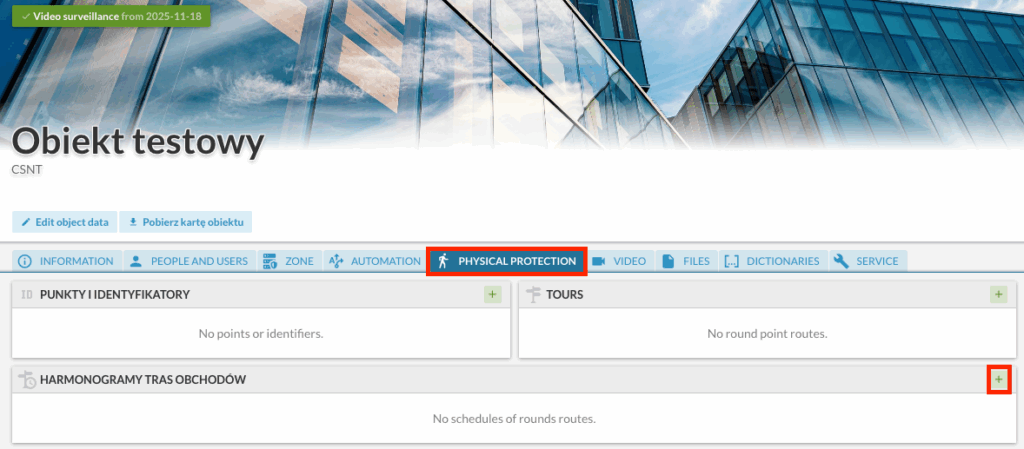
A form for adding a new patrol schedule will then be displayed.
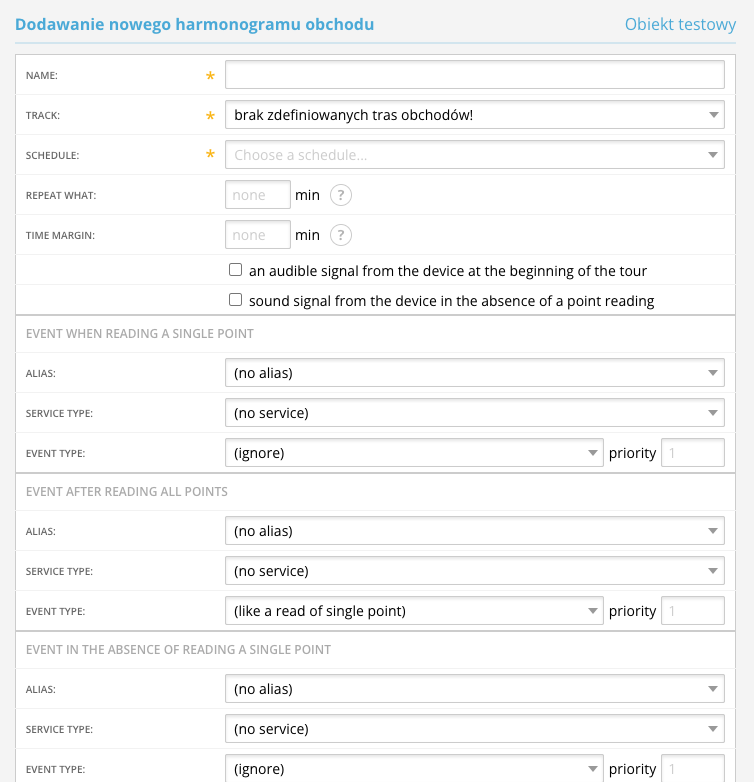
In the form, fill in the following fields:
- Name – name of the tour schedule
- Track – select the previously created tour of readings
- Schedule – select the previously defined schedule (Information → Schedules tab)
- Repeat what – enter the repetition frequency of the schedule in minutes (if left empty, the schedule will not repeat)
- Time margin – the amount of time by which readings may be shifted (+/–) in relation to the schedule (in minutes)
Additionally, for specific cases (e.g. an event when a single point is not read), it is possible to select the types of events that will be generated and displayed on the console.


